top of page
  • Jan 28, 2025
  • 2 min read

Updated: Nov 10, 2025

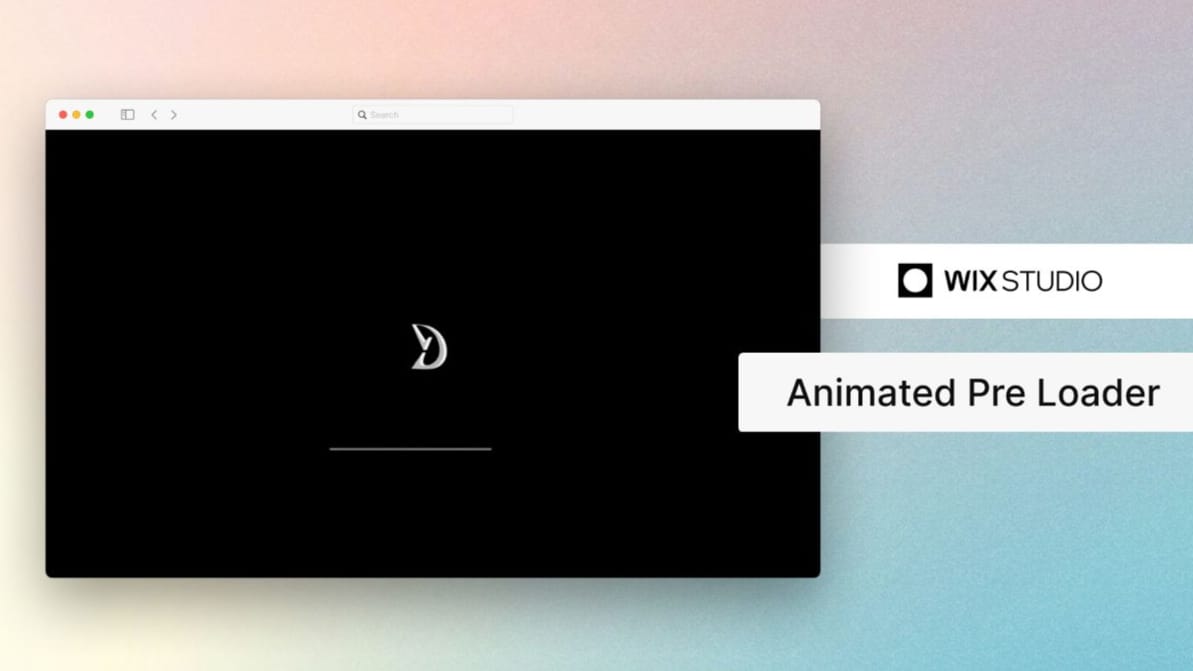
How to Add a Stylish Wix Studio Preloader to Your Website (Step-by-Step Guide)

Want to make your website more engaging with a sleek preloader animation? In this guide, I’ll show you how to implement a custom preloader using Wix’s built-in tools and a bit of code. Let’s get started!


What You’ll Need

  • A Wix website.

  • A loopable animation or video (you can use Wix’s library or upload your own).

  • Basic understanding of Wix’s editor.

Wix Studio Preloader Guide

Step 1: Create the Preloader Container

  1. Open your Wix editor and go to the page where you want to add the preloader.

  2. Add a Container element to your page.

  3. Resize the container to fit the entire screen.

  4. Rename the container’s ID to #PreLoader (this is important for the code to work).

  5. Pin the container:

  6. Click on the container.

  7. Go to the Position menu.

  8. Select Pinned to Page.

Step 2: Add a Loop Animation

  1. Inside the #PreLoader container, add a Video element.

  2. Choose a loopable animation:

  3. Use Wix’s built-in video library.

  4. Or upload your transparent video (e.g., a progress bar or logo animation).

  5. Adjust the video settings to loop seamlessly.

Step 3: Add the Preloader Code

  1. Go to the Page Code tab in your Wix editor.

  2. Paste the following code: // Preloader code $w.onReady(() => { $w('#header').hide(); // Hide header waitForLoading(); }); export function button_onClick() { $w('#PreLoader').show(); waitForLoading(); } function waitForLoading() { setTimeout(() => { $w('#PreLoader').collapse(); // Hide the preloader $w('#header').show('fade'); // Show header }, 3500); // Wait for miliseconds }

Step 4: Customize the Code

  • Change the duration: Adjust the 3500 value in the setTimeout function to match your video length or desired loading time.

  • Hide additional elements: If you want to hide more elements (e.g., footer, buttons), duplicate the $w('#header').hide(); line and replace #header with the ID of the element you want to hide.

Pro Tips
  • Use a transparent video for a modern look, or match the preloader container’s background colour to your video.

  • For a progress bar animation, ensure the video length and code duration are perfectly synced.

  • Experiment with different animations to match your website’s vibe.


Why Add a Preloader?

A preloader isn’t just visually appealing—it also improves user experience by giving visitors something to look at while your page loads. Plus, it’s a great way to showcase your creativity!


Final Thoughts

Adding a Wix Studio Preloader to your website is a simple yet effective way to elevate its design. With this guide, you can implement it in just a few steps. Try it out and let me know how it goes!

Comments


Smooth Wix Studio Preloader Animation

How to Add a Stylish Wix Studio Preloader to Your Website (Step-by-Step Guide)

Want to make your website more engaging with a sleek preloader animation? In this guide, I’ll show you how to implement a custom preloader using Wix’s built-in tools and a bit of code. Let’s get started!


What You’ll Need

  • A Wix website.

  • A loopable animation or video (you can use Wix’s library or upload your own).

  • Basic understanding of Wix’s editor.

Wix Studio Preloader Guide

Step 1: Create the Preloader Container

  1. Open your Wix editor and go to the page where you want to add the preloader.

  2. Add a Container element to your page.

  3. Resize the container to fit the entire screen.

  4. Rename the container’s ID to #PreLoader (this is important for the code to work).

  5. Pin the container:

  6. Click on the container.

  7. Go to the Position menu.

  8. Select Pinned to Page.

Step 2: Add a Loop Animation

  1. Inside the #PreLoader container, add a Video element.

  2. Choose a loopable animation:

  3. Use Wix’s built-in video library.

  4. Or upload your transparent video (e.g., a progress bar or logo animation).

  5. Adjust the video settings to loop seamlessly.

Step 3: Add the Preloader Code

  1. Go to the Page Code tab in your Wix editor.

  2. Paste the following code: // Preloader code $w.onReady(() => { $w('#header').hide(); // Hide header waitForLoading(); }); export function button_onClick() { $w('#PreLoader').show(); waitForLoading(); } function waitForLoading() { setTimeout(() => { $w('#PreLoader').collapse(); // Hide the preloader $w('#header').show('fade'); // Show header }, 3500); // Wait for miliseconds }

Step 4: Customize the Code

  • Change the duration: Adjust the 3500 value in the setTimeout function to match your video length or desired loading time.

  • Hide additional elements: If you want to hide more elements (e.g., footer, buttons), duplicate the $w('#header').hide(); line and replace #header with the ID of the element you want to hide.

Pro Tips
  • Use a transparent video for a modern look, or match the preloader container’s background colour to your video.

  • For a progress bar animation, ensure the video length and code duration are perfectly synced.

  • Experiment with different animations to match your website’s vibe.


Why Add a Preloader?

A preloader isn’t just visually appealing—it also improves user experience by giving visitors something to look at while your page loads. Plus, it’s a great way to showcase your creativity!


Final Thoughts

Adding a Wix Studio Preloader to your website is a simple yet effective way to elevate its design. With this guide, you can implement it in just a few steps. Try it out and let me know how it goes!

More Blogs

Jan 10, 2026

Smart Animated Counters in Wix Studio
Learn how to add smart animated number counters to your Wix Studio site. This step-by-step guide provides a copy-and-paste Velo code snippet that automatically handles complex formats, such as 10k, $500, or 98% satisfaction.

Web

Feb 1, 2025

How to Add Smooth Scroll in a Wix Website
Adding smooth scrolling to your Wix website enhances user experience by creating a fluid and polished transition between scroll actions. In this guide, we will implement smooth scrolling using Lenis , a lightweight JavaScript library for smooth page scrolling. Requirements A Wix Premium Plan  (Custom code functionality is only available in premium plans). Smooth Scroll in a Wix Website Guide Step 1: Adding the Custom Code To enable smooth scrolling, we will use Lenis.js . Below is the custom...

Web

Jan 31, 2025

How to Create an Editable Vector Text Effect in Adobe Illustrator
Learn how to create a stunning editable vector text effect using the Appearance and Graphic Styles panels in Adobe Illustrator. This step-by-step tutorial will show you how to design a spider web text effect that can be reused as a template for any text! Introduction Adobe Illustrator is a powerful tool for creating editable vector text effects that can be reused across multiple projects. In this tutorial, I’ll show you how to make a spider web text effect using the Appearance and Graphic...

Graphics

Smooth Wix Studio Preloader Animation

How to Add a Stylish Wix Studio Preloader to Your Website (Step-by-Step Guide)

Want to make your website more engaging with a sleek preloader animation? In this guide, I’ll show you how to implement a custom preloader using Wix’s built-in tools and a bit of code. Let’s get started!


What You’ll Need

  • A Wix website.

  • A loopable animation or video (you can use Wix’s library or upload your own).

  • Basic understanding of Wix’s editor.

Wix Studio Preloader Guide

Step 1: Create the Preloader Container

  1. Open your Wix editor and go to the page where you want to add the preloader.

  2. Add a Container element to your page.

  3. Resize the container to fit the entire screen.

  4. Rename the container’s ID to #PreLoader (this is important for the code to work).

  5. Pin the container:

  6. Click on the container.

  7. Go to the Position menu.

  8. Select Pinned to Page.

Step 2: Add a Loop Animation

  1. Inside the #PreLoader container, add a Video element.

  2. Choose a loopable animation:

  3. Use Wix’s built-in video library.

  4. Or upload your transparent video (e.g., a progress bar or logo animation).

  5. Adjust the video settings to loop seamlessly.

Step 3: Add the Preloader Code

  1. Go to the Page Code tab in your Wix editor.

  2. Paste the following code: // Preloader code $w.onReady(() => { $w('#header').hide(); // Hide header waitForLoading(); }); export function button_onClick() { $w('#PreLoader').show(); waitForLoading(); } function waitForLoading() { setTimeout(() => { $w('#PreLoader').collapse(); // Hide the preloader $w('#header').show('fade'); // Show header }, 3500); // Wait for miliseconds }

Step 4: Customize the Code

  • Change the duration: Adjust the 3500 value in the setTimeout function to match your video length or desired loading time.

  • Hide additional elements: If you want to hide more elements (e.g., footer, buttons), duplicate the $w('#header').hide(); line and replace #header with the ID of the element you want to hide.

Pro Tips
  • Use a transparent video for a modern look, or match the preloader container’s background colour to your video.

  • For a progress bar animation, ensure the video length and code duration are perfectly synced.

  • Experiment with different animations to match your website’s vibe.


Why Add a Preloader?

A preloader isn’t just visually appealing—it also improves user experience by giving visitors something to look at while your page loads. Plus, it’s a great way to showcase your creativity!


Final Thoughts

Adding a Wix Studio Preloader to your website is a simple yet effective way to elevate its design. With this guide, you can implement it in just a few steps. Try it out and let me know how it goes!

More Blogs

Jan 10, 2026

Smart Animated Counters in Wix Studio
Learn how to add smart animated number counters to your Wix Studio site. This step-by-step guide provides a copy-and-paste Velo code snippet that automatically handles complex formats, such as 10k, $500, or 98% satisfaction.

Web

Feb 1, 2025

How to Add Smooth Scroll in a Wix Website
Adding smooth scrolling to your Wix website enhances user experience by creating a fluid and polished transition between scroll actions. In this guide, we will implement smooth scrolling using Lenis , a lightweight JavaScript library for smooth page scrolling. Requirements A Wix Premium Plan  (Custom code functionality is only available in premium plans). Smooth Scroll in a Wix Website Guide Step 1: Adding the Custom Code To enable smooth scrolling, we will use Lenis.js . Below is the custom...

Web

Jan 31, 2025

How to Create an Editable Vector Text Effect in Adobe Illustrator
Learn how to create a stunning editable vector text effect using the Appearance and Graphic Styles panels in Adobe Illustrator. This step-by-step tutorial will show you how to design a spider web text effect that can be reused as a template for any text! Introduction Adobe Illustrator is a powerful tool for creating editable vector text effects that can be reused across multiple projects. In this tutorial, I’ll show you how to make a spider web text effect using the Appearance and Graphic...

Graphics

bottom of page