How to Add a Smart Counter in Wix Studio (The Animated Way)
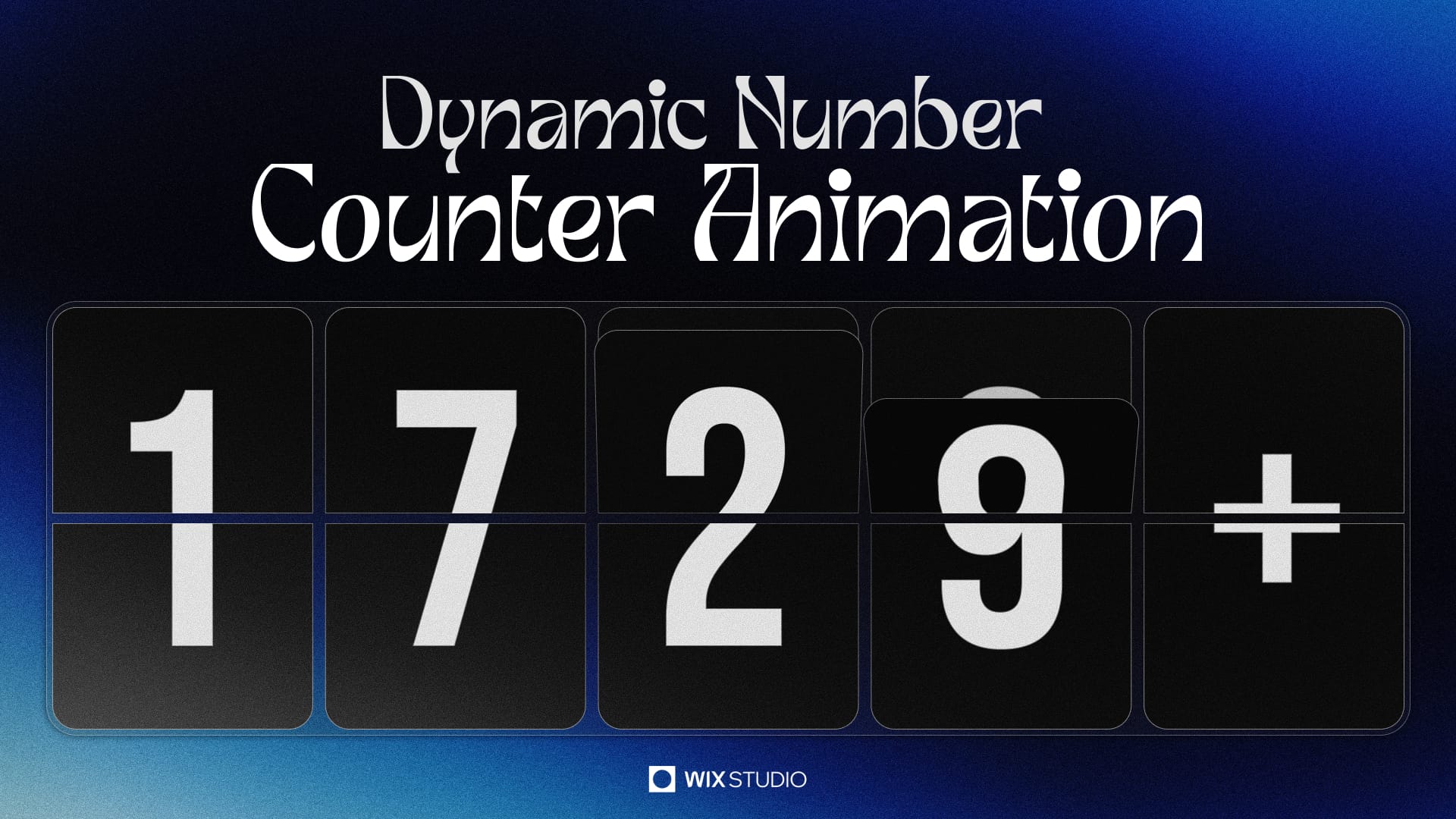
Nothing grabs attention on a portfolio or landing page quite like animated statistics. Whether it’s "10k+ Views" or "100% Satisfaction," watching numbers count up creates a sense of momentum.
If you are looking for the perfect Counter in Wix Studio, you might have realized that standard text elements don't animate by default. In this tutorial, I’m sharing a robust Velo (JavaScript) snippet that I use on my projects. It’s "smart" because it automatically handles suffixes (k, M, B), decimals, and symbols (%) without you needing to write extra code for each text box.

The Outcome
By the end of this guide, you will have text elements that automatically count up from 0 when the user scrolls them into view, acting as a fully dynamic Counter in Wix Studio.
Step 1: Open the Code Panel
You don't need to install anything complex to get this working.
- In the Wix Studio Editor, look at the left sidebar.
- Click the { } (Code) icon.
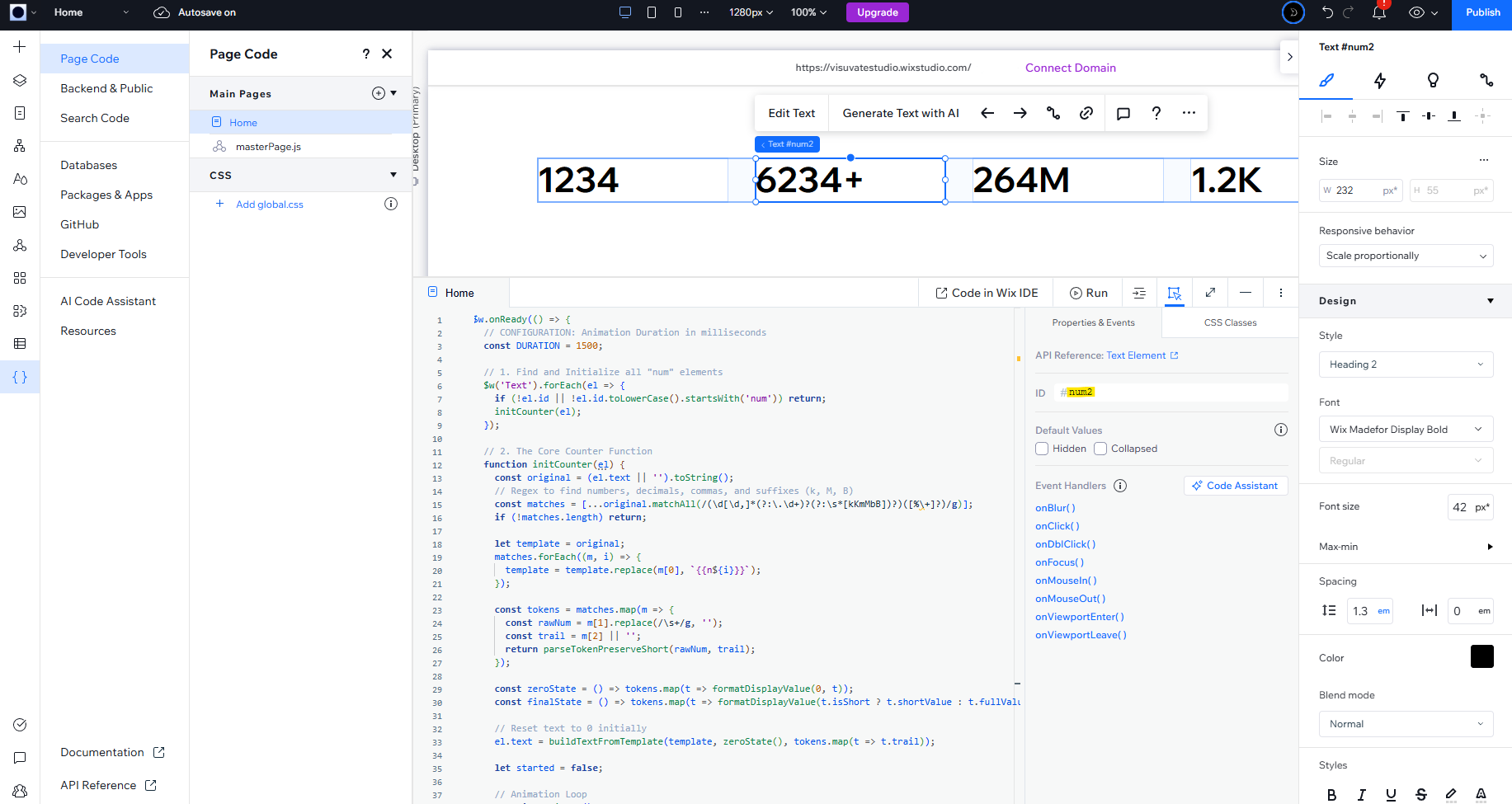
- A panel will slide up at the bottom of your screen. This is where we will paste the code.
Step 2: Prepare Your Text Elements
The code needs to know which text elements to animate. To create a specific Counter in Wix Studio, we use a specific ID.
- Add a Text Element to your canvas.
Type in your final number (e.g., 1500, 98%, $10k).
- Note: You can style the font, size, and color however you like.
- Select the text element.
- Look at the bottom right of your screen (next to the code editor) to find the Properties & Events panel.
- Find the ID field.
Change the ID to start with num.
- Examples: numCounter1, numStats, numRevenue.
The code specifically looks for IDs starting with "num" and ignores everything else.
⚠️ Important Limitation: This code is designed for static text elements only. It will not work for text elements inside a Repeater (connected to the CMS). Repeaters require a different coding approach using onItemReady.
Step 3: The Code
Copy the code below and paste it directly into the panel at the bottom of your screen. (Note: If you see existing code like $w.onReady..., you can delete it and replace it with this complete snippet.)
JavaScript
$w.onReady(() => {
  // CONFIGURATION: Animation Duration in milliseconds
  const DURATION = 1500;

  // 1. Find and Initialize all "num" elements
  $w('Text').forEach(el => {
    if (!el.id || !el.id.toLowerCase().startsWith('num')) return;
    initCounter(el);
  });

  // 2. The Core Counter Function
  function initCounter(el) {
    const original = (el.text || '').toString();
    // Regex to find numbers, decimals, commas, and suffixes (k, M, B)
    const matches = [...original.matchAll(/(\d[\d,]*(?:\.\d+)?(?:\s*[kKmMbB])?)([%\+]?)/g)];
    if (!matches.length) return;

    let template = original;
    matches.forEach((m, i) => {
      template = template.replace(m[0], `{{n${i}}}`);
    });

    const tokens = matches.map(m => {
      const rawNum = m[1].replace(/\s+/g, '');
      const trail = m[2] || '';
      return parseTokenPreserveShort(rawNum, trail);
    });

    const zeroState = () => tokens.map(t => formatDisplayValue(0, t));
    const finalState = () => tokens.map(t => formatDisplayValue(t.isShort ? t.shortValue : t.fullValue, t));

    // Reset text to 0 initially
    el.text = buildTextFromTemplate(template, zeroState(), tokens.map(t => t.trail));

    let started = false;

    // Animation Loop
    function animate() {
      if (started) return;
      started = true;
      const startTime = performance.now();

      function step(now) {
        const t = Math.min((now - startTime) / DURATION, 1);
        // Easing function (Cubic Ease Out) for smooth effect
        const eased = 1 - Math.pow(1 - t, 3);

        const current = tokens.map(tok => {
          const val = tok.isShort ? tok.shortValue * eased : tok.fullValue * eased;
          return formatDisplayValue(val, tok);
        });

        el.text = buildTextFromTemplate(template, current, tokens.map(t => t.trail));

        if (t < 1) {
          requestAnimationFrame(step);
        } else {
          el.text = buildTextFromTemplate(template, finalState(), tokens.map(t => t.trail));
        }
      }
      requestAnimationFrame(step);
    }

    // Trigger animation when element enters viewport
    el.onViewportEnter(animate);

    // Optional: Reset when leaving viewport so it plays again
    el.onViewportLeave(() => {
      started = false;
      el.text = buildTextFromTemplate(template, zeroState(), tokens.map(t => t.trail));
    });
  }
});

/* ================= HELPERS (Paste these outside onReady) ================= */

function parseTokenPreserveShort(rawNum, trail) {
  // UPDATED: Do not force lowercase on the whole string immediately
  // Regex now looks for uppercase or lowercase suffixes: [kKmMbB]
  const shortMatch = rawNum.match(/^([\d.,]+)([kKmMbB])$/);

  if (shortMatch) {
    const num = parseFloat(shortMatch[1].replace(/,/g, ''));
    const originalSuffix = shortMatch[2]; // "M" or "m"
    const lowerSuffix = originalSuffix.toLowerCase(); // used for math only

    const multiplier = lowerSuffix === 'k' ? 1e3 : lowerSuffix === 'm' ? 1e6 : 1e9;
    const decimals = (shortMatch[1].split('.')[1] || '').length;

    return {
      isShort: true,
      suffix: originalSuffix, // Preserves the original Case (e.g. "M")
      shortValue: num,
      fullValue: num * multiplier,
      decimals,
      hasSeparator: /,/.test(rawNum),
      trail
    };
  }

  const numeric = parseFloat(rawNum.replace(/,/g, ''));
  const decimals = (rawNum.split('.')[1] || '').length;

  return {
    isShort: false,
    suffix: '',
    shortValue: null,
    fullValue: isFinite(numeric) ? numeric : 0,
    decimals,
    hasSeparator: /,/.test(rawNum),
    trail
  };
}

function formatDisplayValue(value, tok) {
  const rounded = tok.decimals === 0 ? Math.round(value) : roundToDecimals(value, tok.decimals);
  if (tok.isShort) {
    return tok.decimals === 0
      ? `${rounded}${tok.suffix}`
      : `${rounded.toFixed(tok.decimals)}${tok.suffix}`;
  }
  if (tok.hasSeparator) {
    return Number(rounded).toLocaleString(undefined, {
      minimumFractionDigits: tok.decimals,
      maximumFractionDigits: tok.decimals
    });
  }
  return String(rounded);
}

function buildTextFromTemplate(template, values, trails) {
  let text = template;
  values.forEach((v, i) => { text = text.replace(`{{n${i}}}`, v + (trails[i] || '')); });
  return text;
}

function roundToDecimals(num, dec) {
  const m = Math.pow(10, dec);
  return Math.round((num + Number.EPSILON) * m) / m;
}
Understanding the Code (What you can change)
You don't need to be a coding expert to tweak this Counter in Wix Studio. Here is the one value you might want to adjust:
The Animation Speed At the very top of the code, find this line: const DURATION = 1500;
1500 represents the time in milliseconds (1.5 seconds). To make it faster: Change it to 1000 (1 second). To make it slower: Change it to 3000 (3 seconds).
Why this code is "Smart"
Unlike basic scripts you might find online, this approach uses Regular Expressions (Regex) to read your text before animating it.
If you write 10k, it knows to count from 0 to 10, keeping the 'k'. If you write $50.00, it preserves the dollar sign and the decimal points. It uses an Ease-Out mathematical function, meaning the numbers spin fast at the start and land gently on the final number. This looks much more professional than a linear count and elevates the quality of your Counter in Wix Studio.
Enjoy adding some motion to your metrics!
It's one of many small motion details we build into client sites through our Motion & Interaction Design service.